
-
Created by
 Jennifer Carballosa, last updated by Kelley Dodd on Jun 03, 2026
4 minute read
Jennifer Carballosa, last updated by Kelley Dodd on Jun 03, 2026
4 minute read
Kurzweil 3000 is a comprehensive literacy support software designed to assist students with reading, writing, and studying. It provides text-to-speech functionality, allowing users to have text read aloud, which can support comprehension and focus.
Key Features
Text-to-Speech: Reads digital text aloud in a natural-sounding voice.
Highlighting and Note-Taking: Users can highlight text, add notes, and organize information for easier study and review.
Study Tools: Supports vocabulary development, summaries, and annotations to enhance learning.
File Compatibility: Works with Word documents, text files, and other supported digital formats.
Getting Started with Kurzweil 3000
1. Self-Registration / Account Setup:
- Log in to MyUWF and search for “Kurzweil”
- Click “Kurzweil 3000 Self Registration.”
- Complete the registration fields to create your account.
2. Open Kurzweil 3000:
- Search for “Kurzweil 3000 Web App” on MyUWF.
- Log in using your assigned username and password.
3. Open a Compatible File: Upload Word documents, text files, or other supported formats.
4. Select Text to Read: Highlight the text you want the software to read aloud.
5. Use Reading and Study Tools: Explore highlighting, note-taking, dictionary lookup, and other features to support comprehension and study.
6. Customize Settings: Adjust voice, speed, and display options to match your personal learning preferences.
Set Up Kurzweil 3000 Read the Web Extension
The Kurzweil Read the Web extension adds a reading toolbar and options directly in your browser, allowing you to read and interact with web content.
Steps to Install
- Go to the Chrome Web Store and search for “Kurzweil 3000.”
- Click Add to Chrome for both the Kurzweil 3000 app and the Read the Web extension.
- The Read the Web extension will add the Kurzweil icon to the upper-right corner of Chrome, giving you access to the reading toolbar and options.
Quick Reference Table
| Feature | What It Does | How to Use |
|---|---|---|
| Text-to-Speech | Reads text aloud in a natural-sounding voice | Highlight text and click “Read” or press the shortcut key |
| Highlighting | Marks important text for easy reference | Select text and choose a highlight color |
| Note-Taking | Allows adding comments or personal notes | Select text and click “Add Note” |
| Study Tools | Supports summaries, vocabulary, and comprehension | Use the “Study Tools” menu to access dictionary, definitions, and summaries |
| File Compatibility | Works with supported digital files | Open Word documents, text files, or other supported formats |
| Settings Customization | Adjust voice, speed, and display options | Go to “Preferences” or “Settings” and modify to personal learning needs |
Tips for New Users
Start Small: Begin by reading short sections of text to get comfortable with the text-to-speech and highlighting features.
Use Highlight Colors Strategically: Assign different colors for different purposes (e.g., key points, vocabulary, questions).
Take Notes as You Go: Use the note-taking feature to capture ideas, questions, or important details while reading.
Adjust Voice and Speed: Experiment with voice type and reading speed to find what works best for you.
Explore Study Tools: Make use of dictionary, word lists, and summary features to reinforce comprehension and retention.
Using Kurzweil ReadTheWeb with LockDown Browser
The Kurzweil Read The Web extension allows you to have web content read aloud in text-to-speech voices.
- LockDown Browser now offers a built-in Kurzweil ReadTheWeb extension. Students will need a valid Kurzweil account in order to take advantage of this feature. This extension includes the "read web page," "move cursor forward," and "move cursor back" features.
- On Windows, to turn the extension on, open LockDown Browser and click the "i" icon in the toolbar, then select the button titled "Open Extensions Manager."
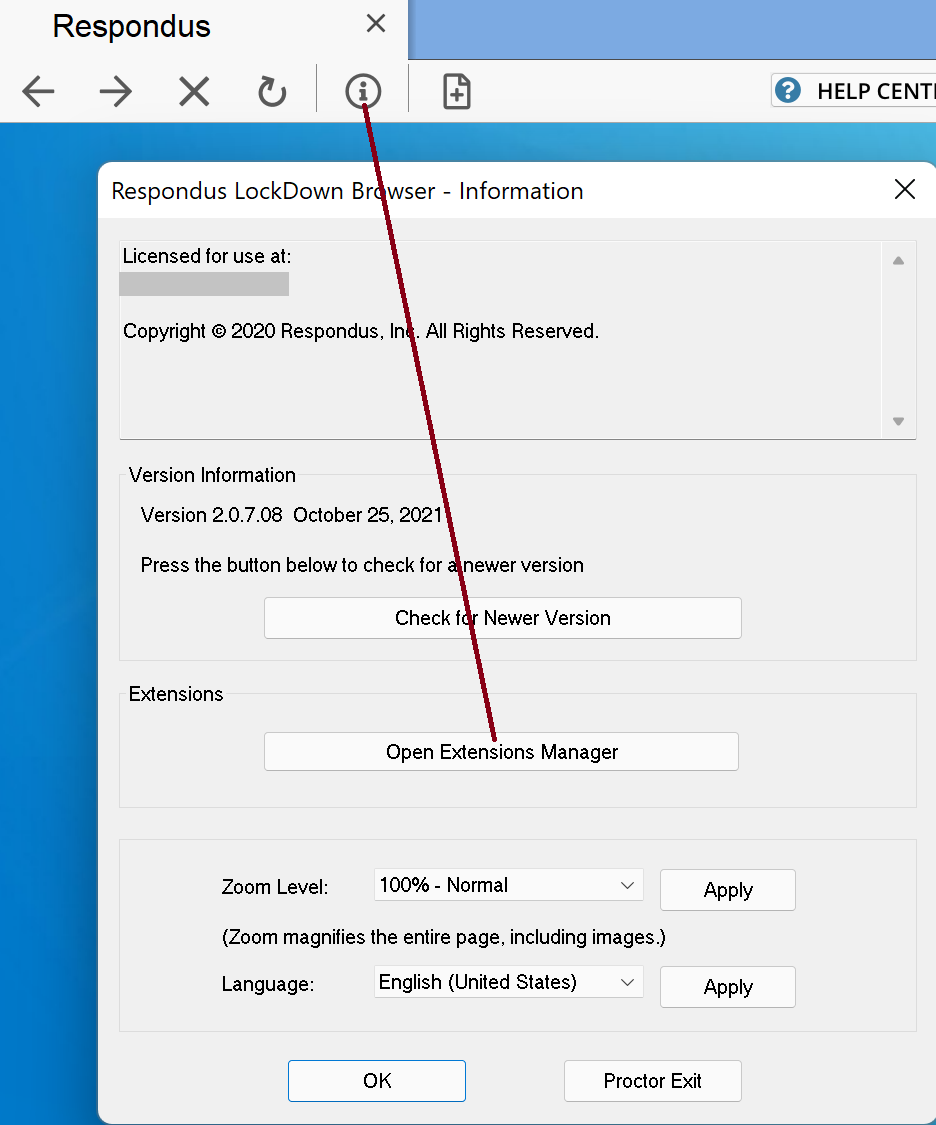
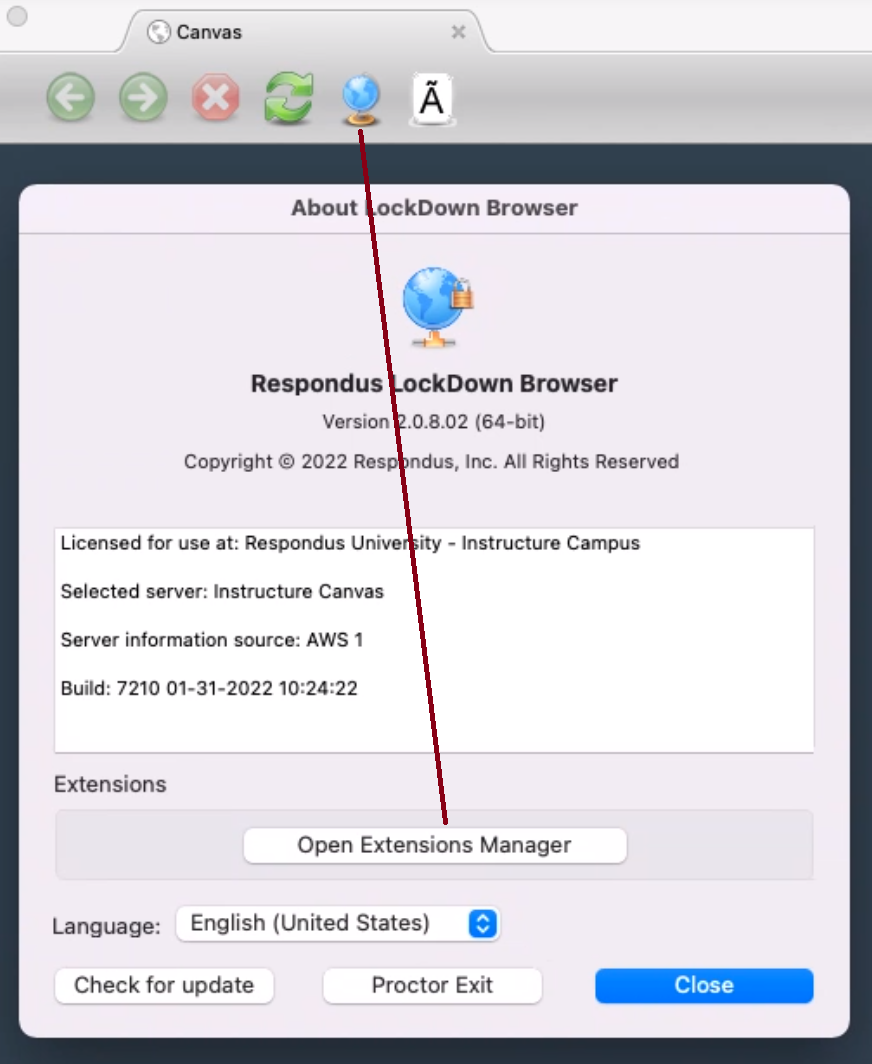
On Mac, you can access the extension by clicking the globe icon in the LockDown Browser toolbar.
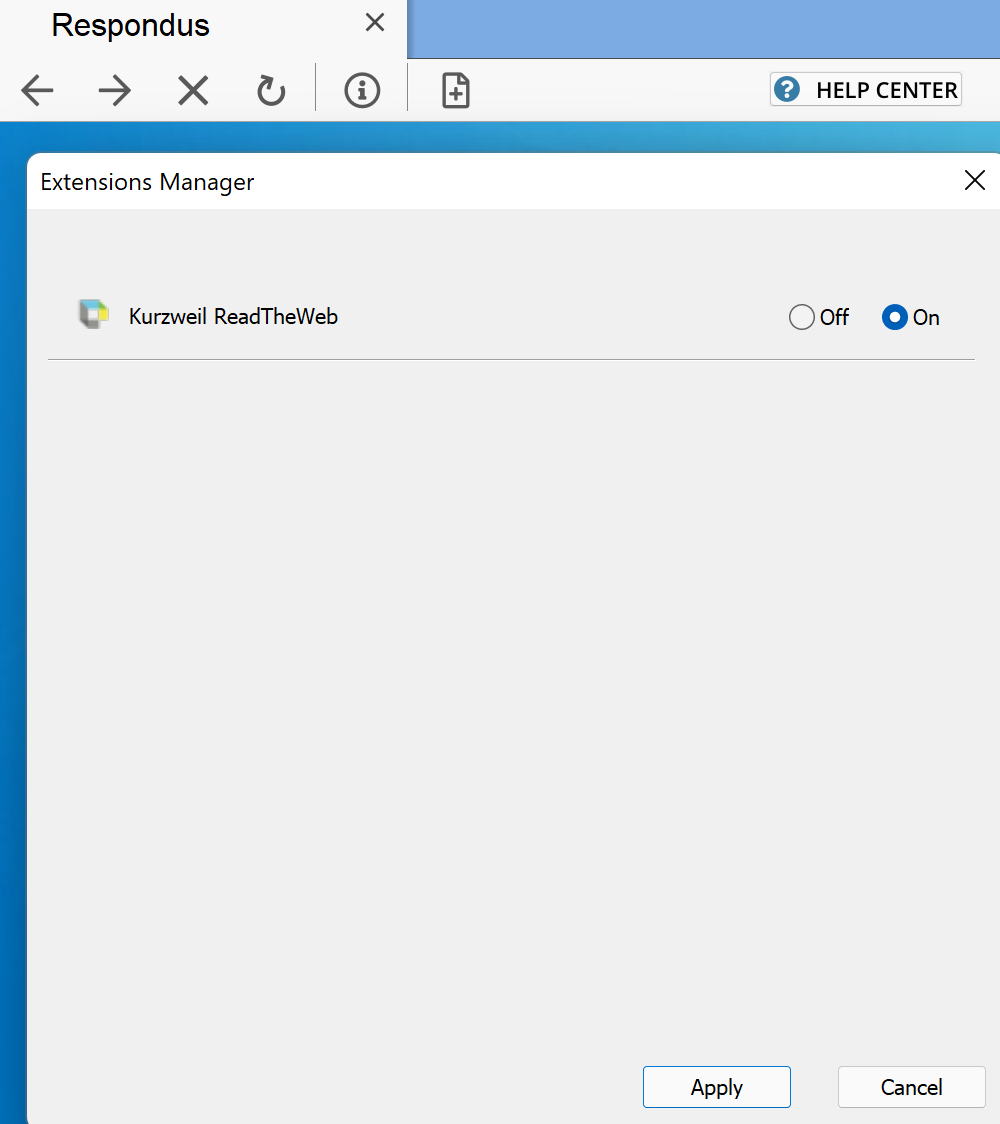
- Select "on" for the Kurzweil extension, and click "apply."
- A Kurzweil pop-up window will appear, where you will need to enter valid credentials for your Kurzweil account.
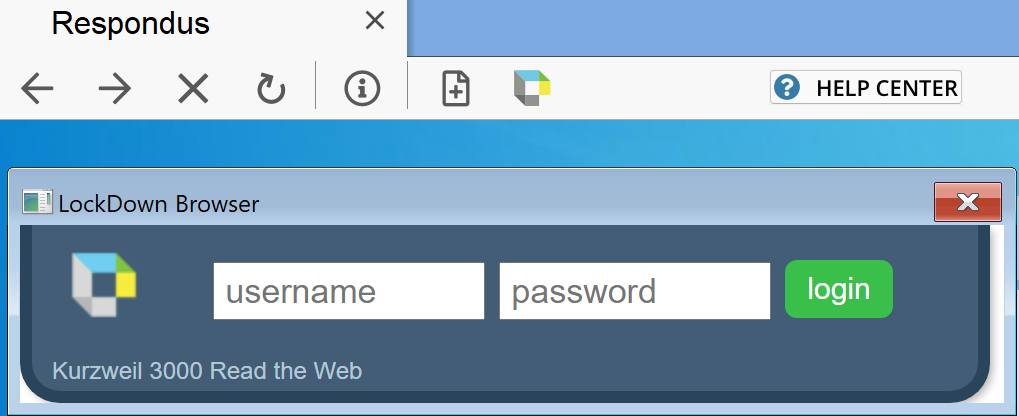
- After a successful logon, the ReadTheWeb extension will be available to use during your LockDown Browser session.
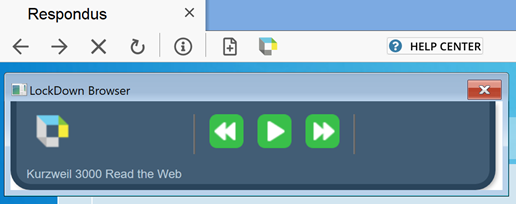
Students can hide the extension toolbar by clicking the [x] on the Kurzweil toolbar window, or the Kurzweil icon on the main LockDown Browser toolbar. Students can display the extension again by clicking the Kurzweil icon on the LockDown Browser toolbar. The Kurzweil extension will need to be enabled, as needed, for each LockDown Browser session. Students will need to log in to Kurzweil each time they desire to use the extension.