You are viewing an old version of this page. View the current version.

Compare with Current View Page History

« Previous Version 11 Current »

Instructions

  1. Click on the network icon in the system tray.
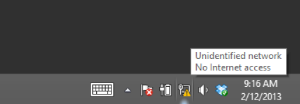
    network icon

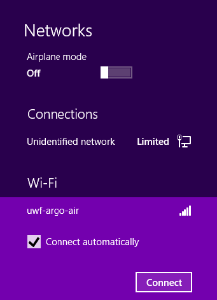
  2. Select uwf-argo-air from the list.

    network for uwf-argo-air

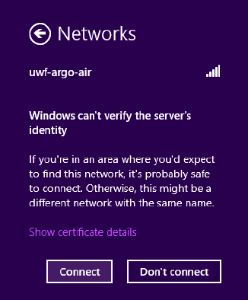
  3. Ensure connect automatically is checked, then click connect

  4. Enter your UWF username and password in the fields.
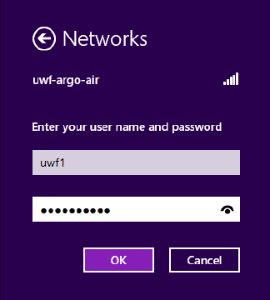
    fields for username and password

  5. Click connect.

    Connect button

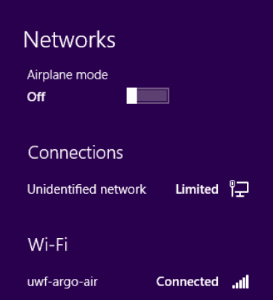
  6. You should now be connected.

    network icon showing successful connection

  7. If you have any issues, press the Windows key and search for “control panel.”
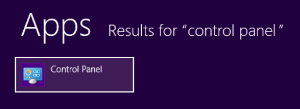
    Control Panel app


ITS Help Desk

(850) 474-2075
helpdesk@uwf.edu

  • No labels