
...
- Click Open, Save, or Save As within the application you are working with.
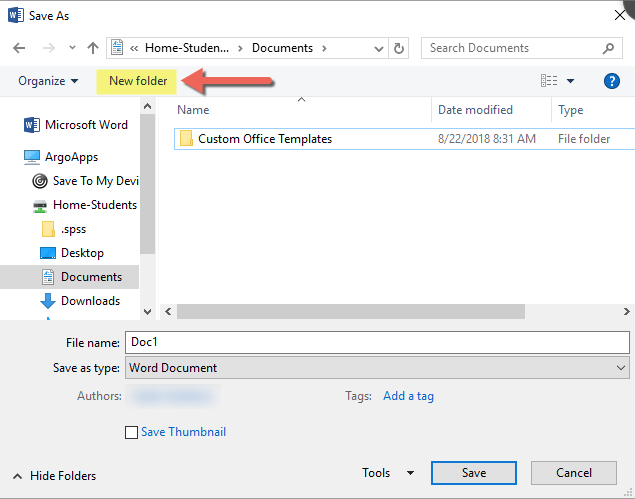
- You should see a window similar to the 'Save As' dialog below. Click the New Folder button.
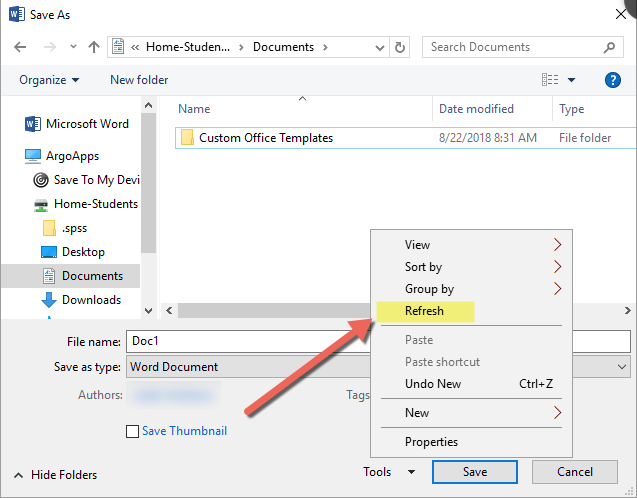
- If you do not see your new folder right away, right click within the white area where the files/folders are listed and click 'Refresh'.
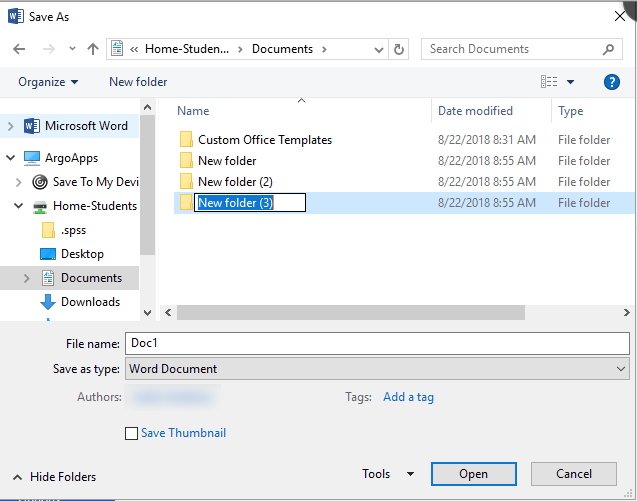
- You should now see your new folder. Use similar steps to refresh the open/save dialog to show other changes such as when you delete an existing file.
Include Page ILP:_Help Desk Footer ILP:_Help Desk Footer