
-
Created by
 Salina Randall, last updated by Unknown User (terickson) on May 05, 2026
5 minute read
Salina Randall, last updated by Unknown User (terickson) on May 05, 2026
5 minute read
Overview
UWF provides virtual software access to online students 24/7. The most up-to-date version of ArcGIS Pro is the primary GIS-related software utilized to complete course assignments. Note that basic patch updates on our systems may not update immediately for system stability.
GIS Online Virtual Desktops hosted within ArgoApps are virtual resources that run on UWF's servers, so students do not need to download or install anything on their personal computer to access. Select students can access a virtual desktop 'GIS Online' as well as 'app-only' versions of GIS software (within the apps column in ArgoApps).
Roaming profiles are used to provide a seamless experience regardless of which GIS server is used. Additionally, all users of the virtual desktops for GIS are assigned a "Student Folder" where they can save large data files (typical of GIS) mounted as S:\ Other network drives include:
| Network Drives | |
|---|---|
| H: | \\argo.uwf.edu\files\[facstaff][students]\home\accountname Student's personal network storage (10Gb limit shared for GIS Online students) |
| R: | \\argo\its\gisonline\Repository Read-only access to class data and samples |
| S: | \\argo\its\gisonline\StudentFiles\<username> GIS online specific personal storage, Instructors have access to assist students with assignments. |
| G: | Google Drive allows you to easily access files stored in your Google drive from campus computer labs and ArgoApps. See Installing Google Drive for Desktop on personal devices for more information. |
Methods to Access
1. Argo Apps - GIS Online Virtual Desktop
ArgoApps is a browser-based solution and the easiest way to access GIS virtual desktops, as it requires no software to be installed on your computer. Non-GIS students, instructors, or staff who have been given access to GIS apps will be able to see and use all drives mentioned in the video except for the R drive. Instead, use the Google drive or H: drive. The process for working with files in the software will be the same.
This video will cover how to access the Argo Apps browser-based client.
2. Local Installation
Some of the other apps are not available to install on your personal computer, but you are welcome to install ArcGIS Pro locally on your own computer. Please see the Student Software Downloads page for instructions. Note that we recommend not installing locally unless you have a GPU with discrete memory. See ArcGIS Pro system requirements for details.
Managing Files
This videos will cover how to move data from the R:\ drive (where your instructor places tutorial data) to the S:\ drive (your Student Drive), including unzipping compressed files using the GIS Files application.
This video will cover how initialize the access to the Google Drive from within the GIS Online Desktop using ArgoApps.
This video will cover ways of accessing and relocating data within the GIS Online Desktop using ArgoApps.
Migrating data from the Student Drive (S:) to the Google Drive, H: drive, or your local drives is important because all data within the S: drive is purged at the end of each semester. If you want to hold onto any of your work, you will need to migrate it to another drive.
Signing into your ArcGIS Account (Required after November 6, 2024)
ESRI has changed their licensing options and every ArcGIS user at UWF will be required to sign into their account upon opening the software after November 6, 2024. Below are instructions on how to sign in using your ArgoNet Account.
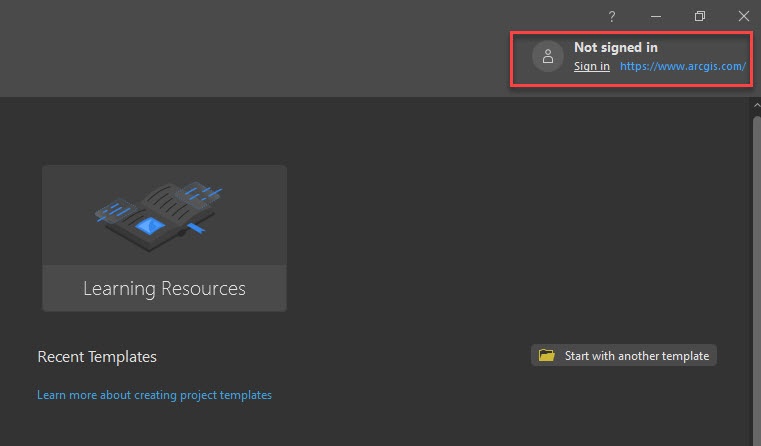
1. Check if you are signed in already.
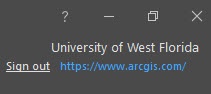
When you open ArcGIS Pro or another ESRI software, you may be prompted to sign in. If so, you can skip ahead. If you are not prompted to sign in, you may need to check that you are signed in. This can be seen on the top right corner of ArcGIS Pro.
If not signed in, select the Sign in option.
2. Choose to sign in with Your ArcGIS organization's URL
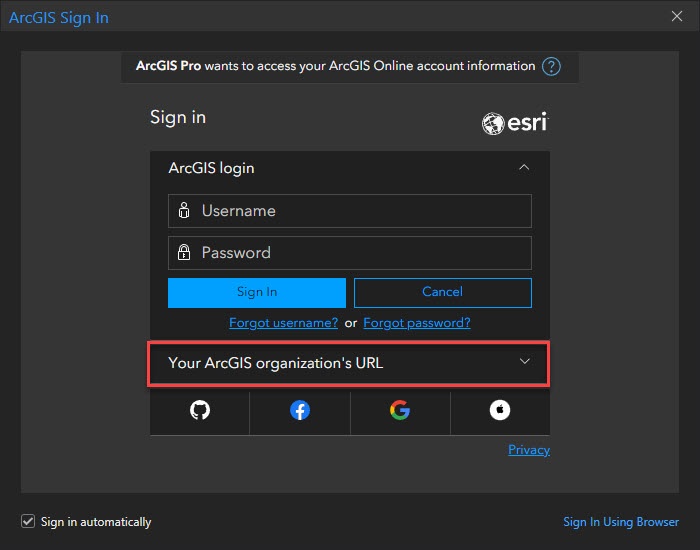
If you know your ArcGIS account login information, feel free to use that to login. However, it will probably be easier to login with your UWF ArgoNet Account credentials.
To do this, open the Your ArcGIS organization's URL section of the menu.
3. Sign in with UWF's ArcGIS organization URL
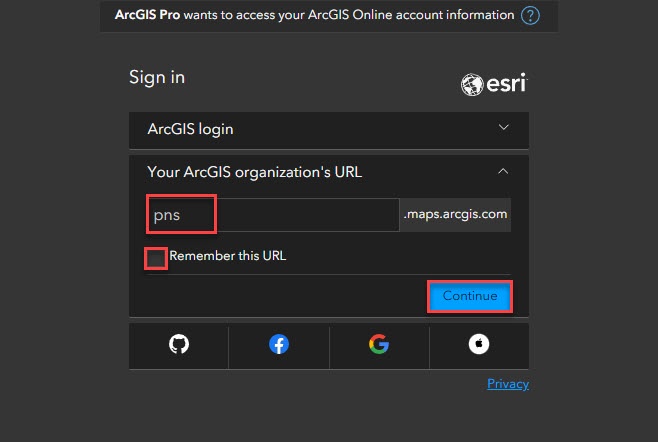
Enter pns as the prefix for our organization's URL. Make sure to hit the checkbox if you do not plan to login with other organizations, then hit Continue.
4. Prompt to use UWF ArgoNet Login
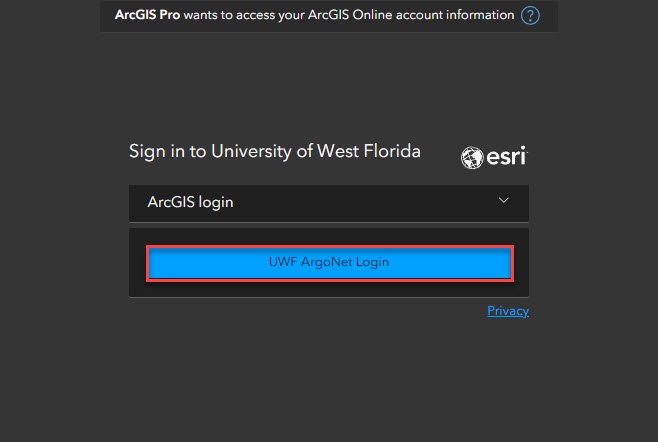
Select UWF ArgoNet Login.
5. Sign in with your ArgoNet Account
Enter your ArgoNet credentials, make sure the checkbox is selected to sign in automatically on the current user/computer, then select Log In.

6. You should be signed into your ArcGIS Account.
You can verify that you are logged in in the top right corner of ArcGIS Pro or other ESRI software.
FAQs
Pages on this Topic
Updated: