Student Tools Enabled by Default
The UWF course template is designed to provide students with a consistent navigation experience while giving instructors flexibility to enable additional tools when needed. The following navigation items are visible to students by default in all courses created from the UWF course template.
| Navigation Item | Purpose |
|---|---|
| Home | Course landing page |
| Simple Syllabus | Access the official course syllabus |
| Modules | Primary location for course content and activities |
| Announcements | Course announcements and updates |
| Assignments | View and submit assignments |
| Discussions | Participate in course discussions |
| Grades | View grades and feedback |
| Zoom LTI 1.3 | Access course Zoom meetings and recordings |
| My Materials | Access course materials and digital textbooks, when adopted for the course |
| UWF Resources | Access university support resources |
| Library Tools | Access library services and course-related library resources |
| YuJa | Access course video content and recordings, when used in the course |
Instructor Tools Enabled by Default
The following tools are enabled in the course template to support course management, accessibility, and quality improvement. These tools are available to instructors and course designers and are not visible to students.
Tool | Purpose |
|---|---|
UDOIT | Review and improve course accessibility |
TidyUP | Manage and clean up unused course content and files |
Course Analytics | Review course participation and engagement data |
Optional Navigation Items
The following navigation items are hidden by default but may be enabled by instructors when needed to support specific teaching, learning, assessment, collaboration, or publisher integration needs. They are now listed in alphabetical order, so they are easier for faculty to find and enable when needed.
Recommended Workflow: Use a Selective Course Import
If you are reusing materials from a previous course, use a selective course import rather than importing all content. A selective import lets you copy only the content you need while preserving the navigation structure and settings of the course template.
Recommended Steps
Open your new course shell.
Select Settings.
Select Import Course Content.
Choose Copy a Canvas Course.
Locate the previous course.
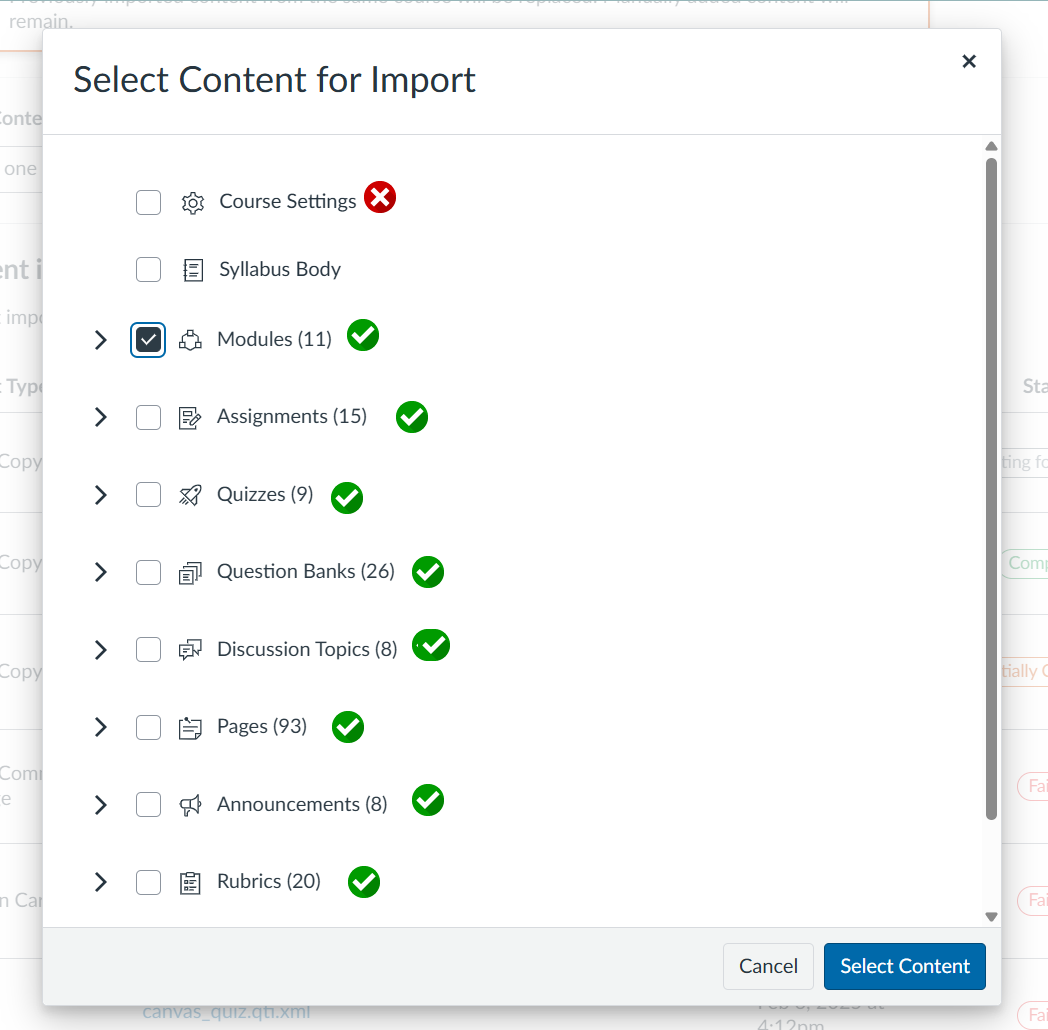
Select Select specific content rather than All content.
Choose the modules, assignments, discussions, quizzes, pages, and files you want to import. DO NOT import Course Settings.
Review and publish your course as needed.
Already Imported an Entire Course?
If you have already copied all content from a previous course and your navigation menu no longer matches the template:
Open Settings.
Select the Navigation tab.
Review the visible and hidden navigation items.
Make any desired adjustments.
Select Save.