You are viewing an old version of this page. View the current version.
Compare with Current
View Page History
« Previous
Version 41
Next »
If you found a Zoom Phone calling card in your office, find the picture below that best matches your situation.
I have BOTH an old phone and a new Zoom phone. | My old phone is gone. |
|---|
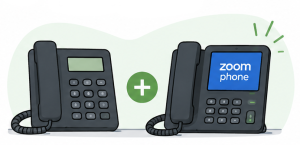
What should I do?Until July 16 - Continue using your old phone
- Feel free to explore the new phone’s features
Starting July 16 - Begin using your new Zoom phone!
- Disconnect your old phone and leave it on your desk for collection
| 
Good news! On July 16th, your phone service will work through the Zoom app on your computer or mobile device. What should I do?- Sign in to the Zoom app on your computer and/or mobile device
- Beginning July 16, make and receive calls on Zoom Phone
- If you were expecting a desk phone, contact your department's Zoom Phone Department POC (Point of Contact)
|
I only have a new Zoom phone. | I don't see my situation listed. |
|---|
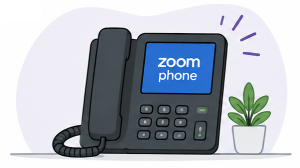
What should I do? - Complete remaining Zoom Phone setup tasks such as setting up your voicemail
- Familiarize yourself with your new phone
- Begin using it on July 16
We likely completed your setup while you were away from your office, or we were given permission to remove your old phone early. | 
If others in your area received calling cards and you did not, one of these is probably true: If you currently use a Siemens or Cisco phone, there’s still a good chance we’ll be visiting your area on cutover day. |
Need Help Getting Ready?
For setup instructions, training materials, and information about using Zoom Phone on your computer, mobile device, or desk phone, visit Getting Started with Zoom Phone.
Other Helpful Links
