
Overview
Adobe Creative Cloud gives you the full suite of professional tools to craft, refine, and perfect your work. From Photoshop and Illustrator to Premiere Pro and InDesign, you’ll have everything you need to design with precision, edit like a pro, and build a portfolio that opens doors. It’s the ultimate creative toolkit for students who want to make an impact.
What’s Included in Adobe Creative Cloud

What Apps Are Included
An Adobe Creative Cloud license provides access to a large set of Adobe apps for design, photo, video, web, and document work.
Commonly used apps include:
Photoshop – image editing and graphics
Illustrator – vector graphics and logos
InDesign – page layout and publishing
Premiere Pro – video editing
After Effects – motion graphics and effects
Acrobat Pro – advanced PDF tools
Lightroom – photo management and editing
Adobe Express – quick graphics and social content
Eligibility & Request Requirements
- Students: All actively enrolled students are eligible.
- Faculty/Staff: Employees are eligible with a valid business reason. Supervisor approval is required.
Licenses aren't guaranteed, are subject to availability, and may be removed if not used for 90 days.
How to Request Access?
Students
- Submit a Request for a Student Creative Cloud License.
- If prompted, log in with your ArgoNet credentials.
- Read the usage agreement.
- If you agree with the terms and conditions, click 'I agree', and submit your access request.
Approval is typically granted within minutes*. You will receive a notification to your UWF email address when the request is approved.
Faculty/Staff
- Submit a Request for a Faculty/Staff Creative Cloud License.
- If prompted, log in with your ArgoNet credentials.
- Provide a valid business need for the software.
- Read the usage agreement.
- If you agree with the terms and conditions, click 'I agree', and submit your access request.
The request will then be routed to your supervisor for approval. You will receive an email notification after the approval is granted*.
*While the request may be approved in minutes, it may take up to 45 minutes for the license to become available for use.
How to Obtain the Software?
Faculty and Staff Download Instructions
After receiving approval for a license, Faculty and Staff may submit a ticket to request the installation on UWF managed devices. A ticket is not required if the software is already installed or if you are using it on a personally owned device.
Student Download Instructions
See Download Creative Cloud desktop app for instructions.
Signing into Creative Cloud
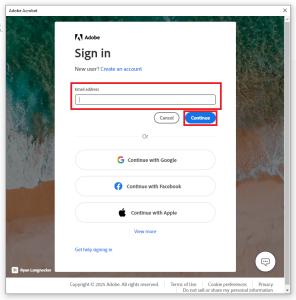
When you first launch Creative Cloud you will be prompted to sign in. Enter your full UWF email address, then click "Continue":
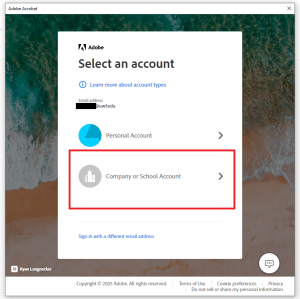
Next, select the "Company or School Account" option:
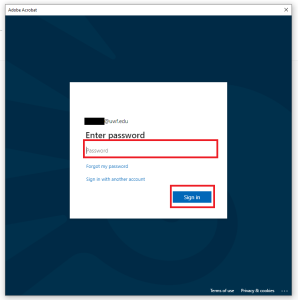
Finally, enter your ArgoNet password (the same password used for MyUWF and UWF Gmail) to be signed in:
You should then be able to start using the software!