-
Created by
 Jeremy Boccabella, last updated by Isaac Steffy on Feb 20, 2026
2 minute read
Jeremy Boccabella, last updated by Isaac Steffy on Feb 20, 2026
2 minute read
Instructions
Step 1
Click the Wi-Fi icon in the upper right corner of the screen.

Step 2
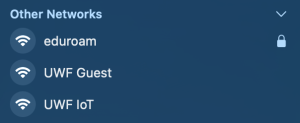
Click on eduroam under Other Networks.
Step 3
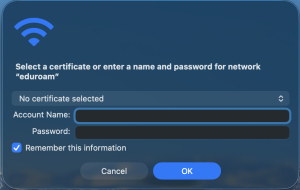
Enter your full UWF email address in the Account Name field and your UWF password in the Password field.
Step 4
Click Continue to verify the network certificate for eduroam.

Step 5
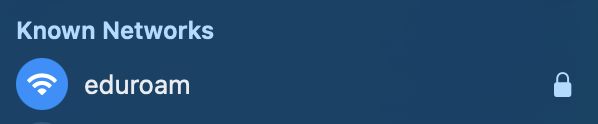
You should now be connected to eduroam, and eduroam should appear in your Known Networks.
Please Note: If you change your ArgoNet password after connecting to eduroam, you must forget the eduroam network prior to reconnecting.
To forget the eduroam network:
Step 1
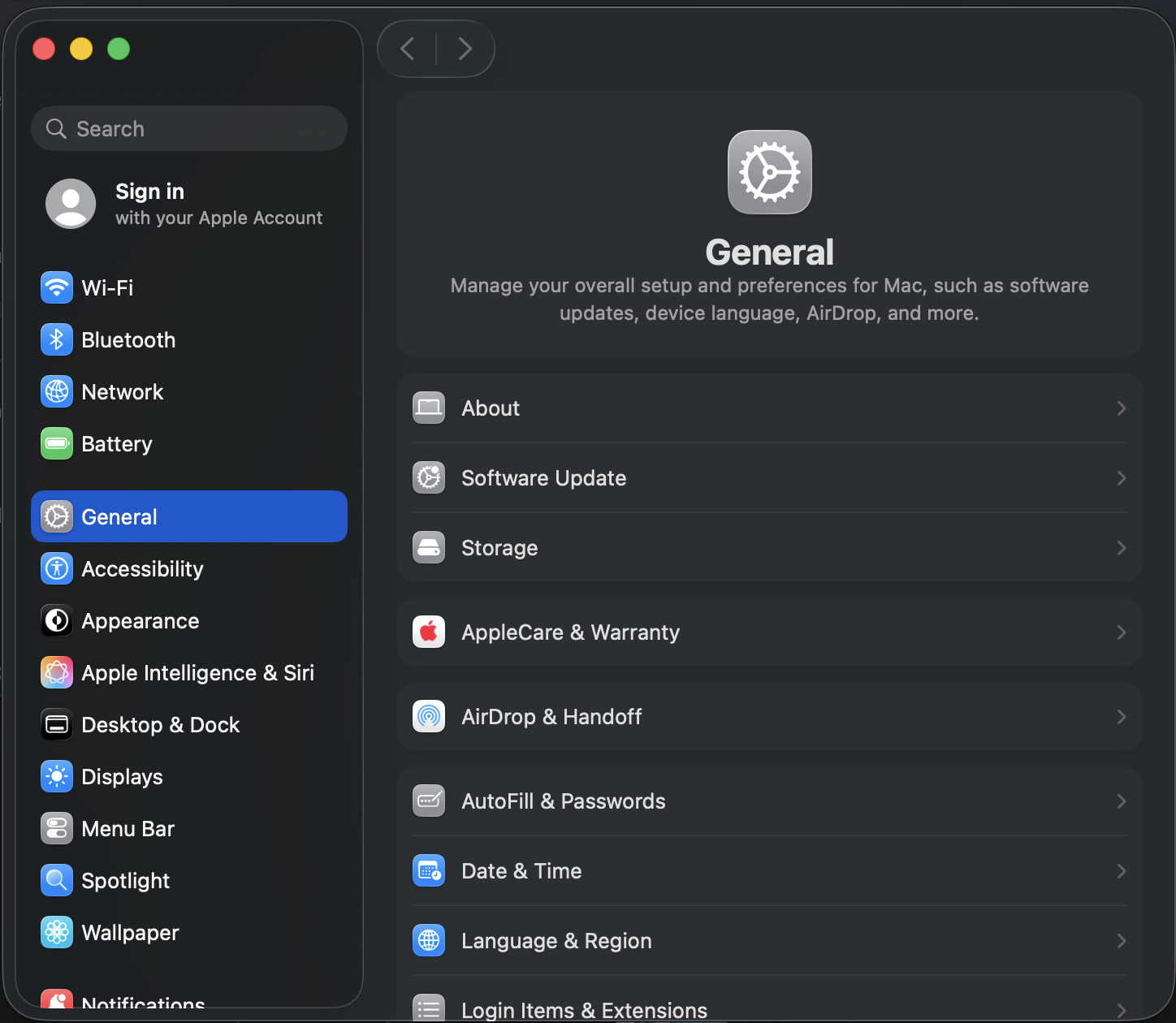
Open System Settings, and click on Wi-Fi in the options on the left of the System Settings window.
Step 2
Find eduroam under Known Networks, and click the More Options icon on the far right (circle containing three dots).

Step 3
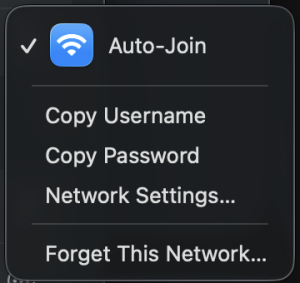
Click on Forget This Network...
Step 4
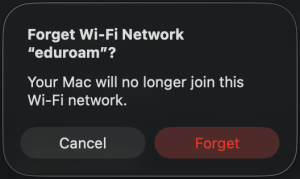
Click Forget. The eduroam network should no longer appear under Known Networks.