As a designated Point of Contact (POC) for your department, you are the main liaison with the ITS Zoom Phone Migration Team. Your role is to ensure the migration reflects your department’s operational needs and service requirements. Throughout this process, POCs will be added to a dedicated Jira migration ticket for your department. This ticket is the central place where ITS will post updates, confirm information, communicate with the POCs, and provide post-migration support.
To ensure a seamless migration, POCs are responsible for completing the intake questionnaire, which captures the following critical data points:
Departmental Operations: Identify all departmental and shared phone lines. POCs will also collaborate with ITS to define call queues, hunt groups, and automated routing configurations.
User Verification: Audit existing personnel records to confirm which team members require an active extension and identify any lines that should be decommissioned.
Hardware Selection: Confirm the hardware needed for each user, ensuring that every individual is equipped with the hardware needed to perform their role effectively.
Accurate reporting ensures uninterrupted service, proper equipment distribution, and preservation of departmental workflows.
Before completing the questionnaire, it is important to understand the University’s hardware philosophy for the transition to Zoom Phone:
Zoom Phone is designed to function primarily through the Zoom Workplace app on desktop or mobile devices.
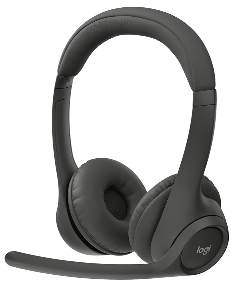
Each user is provided one funded device, typically a headset that connects directly to your computer (via USB or Bluetooth) and is fully compatible with the Zoom app.
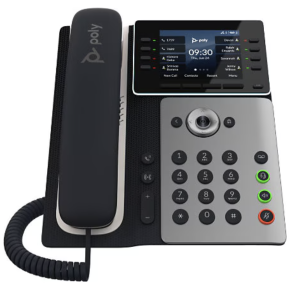
A business justification is required to evaluate the need for traditional physical desk phones (see below for additional details).
All requests for traditional physical desk phones will be reviewed and discussed with the department.
Because traditional physical desk phones are expected to be used only in limited scenarios, they may result in additional cost to the department.
Users with a functional headset do not need to request new hardware.
If a physical desk phone is needed, provide a clear business justification explaining why a softphone solution is not sufficient. Justifications may include safety requirements, shared use, public access, accessibility needs, or operational constraints. Describe how the device will be used (e.g., reception desk, lobby phone, conference room, emergency use, shared workspace). Please add this business justification to the notes section for each line. |
Available Hardware Options:
| Hardware Option | Link | Picture | Connection Type | Best For... |
| Bluetooth Wireless | Logitech 981-001468 |
| Wireless | Users needing high mobility. Note: Some desktop computers may require a USB Bluetooth adapter (dongle). See below for additional details. |
| Physical Desk Phone | Poly Edge E350 |
| Corded | Requires Business Justification. Reserved for shared spaces, reception areas, or high-volume use cases (long on-hold times, etc.) |
The intake questionnaire serves as the blueprint for your migration. The information provided will directly inform number porting, call routing configuration, hardware procurement, and system setup.
Deadline: Please complete all required sections within two weeks to avoid migration delays.
The spreadsheet contains telecommunications data from existing records. Because legacy records may be outdated, POCs are responsible for auditing and correcting this information. If lines or users are missing, add them to the bottom of the worksheet. |
Step-by-Step: Completing the Intake Questionnaire
Start with the Departmental Lines tab.
Then complete the User Details tab.
Fill out all required fields and provide notes for any entries that may require clarification.
If you are uncertain about a line or user, include it anyway - ITS will verify and confirm all details.
The following sections provide additional guidance and context to assist you in completing each part of the intake questionnaire accurately and efficiently.
Completing the intake questionnaire is one of the most important responsibilities of the POC. Because this information directly impacts system configuration, hardware distribution, and call routing, it is essential that responses are as accurate and complete as possible.
To make this process more manageable, POCs are strongly encouraged to leverage existing team communication channels rather than gathering all information independently.
Recommended Approach
Subject: Action Required: Zoom Phone Transition & Information Request Hi Team, The University of West Florida is transitioning from its current phone system to Zoom Phone. This upgrade will provide a more flexible, modern communication experience by allowing you to make and receive calls directly through the Zoom Workplace app on your computer or mobile device. What This Means for YouOur department will be adopting a “soft phone” approach, meaning most users will no longer use a traditional desk phone. Instead, calls will be handled through Zoom using a headset connected to your computer. Each user is eligible for one funded device (typically a headset), and traditional desk phones will only be provided in limited cases where there is a clear business need (e.g., shared spaces, reception areas, or specific operational requirements). Information NeededTo ensure a smooth transition, I need a few details from each of you. Please review and reply with the following information:
If you select a Physical Desk Phone, please include a brief business justification explaining why a Zoom (soft phone) solution will not meet your needs. TimelinePlease send your responses by [INSERT DEADLINE] to help us stay on track with the migration timeline. If you’re unsure about any of the options, feel free to reach out - I’m happy to help. |
B. Departmental Lines: Managing Your Operations
The Departmental Lines tab captures all departmental and shared (non-personal) lines. Follow the steps below to ensure your data is complete and accurate:
Step 1: Review All Departmental Lines (Column D)
Confirm that all existing phone lines currently published, assigned, or in use within your department are listed.
Common examples:
Main office/reception lines and fax lines.
Lobby, courtesy, and common area phones.
Departmental classrooms, labs, and training room phones.
Step 2: Perform a Directory Audit
To ensure accurate public-facing information and internal call routing:
Quick review of all departmental listings in the UWF Campus Directory.
Confirm that all phone numbers are accurate and up to date.
Document any inaccuracies so that both public contact information and internal routing remain accurate after migration.
Now would be a good time to work with your department to ensure that the UWF Campus Directory information is up-to-date, but please note that we will use the information you provide in the intake questionnaire for the Zoom Phone migration.
Step 3: Confirm the Display Name for Each Department Line (Column B)
Provide the Display Name that will appear on caller ID and within the Zoom interface.
Guidelines for Display Name:
Clearly represents the department, phone location or line function.
Avoids abbreviations that may confuse callers.
ITS may need to adjust the line display name to ensure uniqueness. If no Display Name is provided, ITS will default to the Purpose or Function line name listed in Column A.
Step 4: Confirm the Location of Any Physical Phones (Column C)
For any line associated with a traditional physical desk phone, provide the building and room number.
Accurate room-level information is required for installation planning and asset tracking.
Step 5: Indicate the Migration Action for Each Line (Column E)
For each department line, please indicate the desired action for the phone number by selecting one of the following options:
Keep: Retain the existing line and extension during migration.
Delete: Remove the line; the line is no longer in use or will not require migration.
Change: Indicates our records are inaccurate. Use this if a record needs updating or if a new number is required. Provide details in the Notes column.
Move to User: Use this if a general departmental line should now be assigned to a specific person.
Step 6: International Calling Needs (Column F)
Step 7: Notes & Configuration Details (Column G)
The Notes column is one of the most important parts of the questionnaire. Providing detailed context here helps ITS accurately configure your department’s phone system and reduces the need for follow-up clarification.
Provide additional details for each line to guide ITS configuration, including but not limited to:
Call queues and hunt groups
Auto-attendants
After-hours routing
Voicemail expectations
Call restrictions
Clear and detailed notes ensure accurate configuration and setup of proper call routing.
The User Details tab captures individual-level information for all employees who require Zoom Phone service.
The information collected will be used to migrate existing phone numbers, assign new numbers as needed, and configure user phone services appropriately.
Users you should expect to see are anyone that meets all of the following criteria:
Examples of users who will not have entries on the User Details tab include:
|
Step 1: Review Staff Members (Column A-D)
Step 2: Indicate the Migration Action for Each User (Column E)
For each user, please indicate the desired action for the phone number by selecting one of the following options:
Keep: Retain the existing line and extension during migration.
Delete: Remove the line; the number is no longer needed.
Change: Indicates our records are inaccurate. Use this if a record needs updating or if a new number is required. Provide details in the Notes column.
Step 3: Confirm Hardware Needs & Device Type (Column F & G)
Please review the Zoom Phone Devices & Hardware section above for additional information.
Select the one funded hardware option per user:
If you are unsure whether a user requires a USB Bluetooth adapter, confirm whether they are using a desktop or laptop. In most cases, laptops have built-in Bluetooth and will not require an adapter. ITS can assist with determining compatibility as needed.
Users with a functional headset do not need to request new hardware.
Step 4: Confirm Core Features (Columns H-J)
To ensure users have the appropriate level of access, please verify the following functional requirements:
SMS Messaging: Determine if the user requires the ability to send and receive text messages via their UWF-assigned number
International Direct Dialing: Identify users whose role requires calling outside the United States and Canada. International calling may incur additional charges and should only be requested for users with a demonstrated business need.
Step 5: Notes & Configuration Details (Column G)
The Notes column is one of the most important parts of the questionnaire. Providing detailed context here helps ITS accurately configure your department’s phone system and reduces the need for follow-up clarification.
Provide additional details for each line to guide ITS configuration, including but not limited to:
Call queues and hunt groups
Call restrictions
Clear and detailed notes ensure accurate configuration and setup of proper call routing.
The quality and completeness of your intake questionnaire directly impacts the success of your department’s migration. Taking the time to gather accurate information now will significantly reduce delays, rework, and post-migration issues.
The transition to Zoom Phone is designed to be a highly supported experience.
The journey from legacy Siemens or Cisco systems to Zoom Phone follows a structured three-stage process:
On the scheduled cutover date, your legacy Siemens or Cisco phone will stop receiving calls.
Instant Activation: Your university number becomes instantly reachable via the Zoom app on your desktop and mobile device.
Communication: All migrated users will be sent the Getting Started with Zoom Phone page, which provides detailed instructions to guide your account setup.
We are committed to service continuity. Following your migration, the following support structures are in place:
Immediate Assistance: POCs have a direct line to the project team via commenting on their Jira migration ticket to resolve routing discrepancies immediately.
Technical Troubleshooting: Individual users should contact the ITS Help Desk at (850) 474-2075 or helpdesk@uwf.edu.
Customized Trainings: The Help Desk is available to schedule 1-on-1 or group training sessions for departments requiring a deeper dive into modern features.
See the Zoom Phone Migration FAQ for more information on Zoom Phone project process & expectations.
Yes! Your POC will need to complete the intake questionnaire and select "Keep" in the Migration Action column for each line. |
The project only funds one. If both are needed, the department may need to provide additional funding or justification. |
Following cutover, the Zoom Phone onsite teams will visit your office to collect legacy Cisco or Siemens hardware. |
There is no additional cost to departments for the new Zoom Phone service for existing users or for standard funded hardware (one device per user). |
Yes, you can download the Zoom Workplace desktop or mobile app by following these linked instructions. Once installed, simply sign in using your UWF credentials after launching the software. |
Yes, you can use the Zoom Workplace mobile app on your personal mobile phone, which will use your assigned university number for calls and texts, keeping your personal number private. |