
Cutover Information
The University of West Florida is transitioning campus telecommunications services from our legacy phone systems to Zoom Phone today.
| Info | ||
|---|---|---|
| ||
UWF has officially migrated over to Zoom Phone! All UWF number porting is complete. You should now have access to your assigned line via the Zoom Workplace application. The ITS Help Desk is also available to assist at (850) 474-2075 or via email at helpdesk@uwf.edu. |
Zoom Phone FAQs
| Expand | ||
|---|---|---|
| ||
First, sign out of and back into the Zoom Workplace application. If the issue persists, restart your computer and verify that you have an internet connection. If you continue to experience problems, join the live support session or contact the ITS Help Desk. |
| Expand | ||
|---|---|---|
| ||
Yes. A headset is not required to use Zoom Phone. You can make and receive calls using your workstation as long as your computer has a functioning speaker and microphone. You may also use the Zoom Workplace mobile application on your personal phone. |
| Expand | ||
|---|---|---|
| ||
Yes. You can install the Zoom Workplace mobile application on your smartphone or tablet and sign in using your UWF account to make and receive calls. |
| Expand | ||
|---|---|---|
| ||
Users will need to save any voicemail messages from the legacy system, as they do not migrate to the new system. It's possible a message may have been left for you before the cutover, so please remotely check your voicemails in the legacy system, by dialing 850-473-7898. When prompted enter your ID (your 4 digit campus extension) followed by # and your voicemail PIN then #. This service will be available for a few more weeks. |
| Expand | ||
|---|---|---|
| ||
Your Department POC is your best first point of contact. Please refer to the resources linked at the bottom of this Confluence page for additional resources and support. You may also contact the ITS Help Desk at (850) 474-2075 or helpdesk@uwf.edu during normal business hours. |
We Visited Your Office for the Zoom Phone Transition
| Note | ||
|---|---|---|
|
...
The Zoom Phone team may have visited your office while you were away to prepare for UWF's transition to Zoom Phone |
...
: Before |
...
June 16: Continue using your current phone. |
...
June 16: Use Zoom Phone. |
...
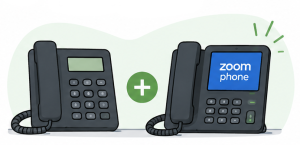
If you found a Zoom Phone calling card in your office, find the picture below that best matches your
...
situation.
|
|---|
...
|
|---|
...
| |
|---|---|
|
|---|
...
|
|---|
...
| |
|---|---|

...
Please follow the Getting Started with Zoom Phone instructions & Phone Reference Guides to:
...
Sign in
...
Finish setup
...
Your phone number has likely already been moved to Zoom Phone, and your old desk phone has been removed.
What should I do?
Starting July 16th
Please follow the Getting Started with Zoom Phone instructions to begin using your phone on:
Your computer or university-issued device
Or your personal mobile device
university phone number will be moved to Zoom Phone. Starting June 16, you'll use the Zoom app on your computer or mobile device to make and receive calls using the same phone number. What should I do? |
Until July 16
- Continue using your old phone
- Feel free to explore the new phone’s features
Starting July 16
- Begin using your new Zoom phone!
- Disconnect your old phone and prepare it for collection.
|
If you were expecting a desk phone |
...
, contact your |
...
department's Zoom Phone Department POC (Point of Contact) |
...
| ||
|---|---|---|
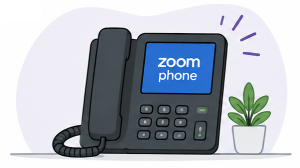
Please follow the Getting Started with Zoom Phone instructions to:
Sign in
Finish setup
Learn how to use your new phone and Zoom Phone features
Curious? We respect that.
|
| ||
|---|---|---|
If others in your area received calling cards and you did not, one of these is probably true:
If you currently use a Siemens or Cisco phone, there’s still a good chance we’ll be visiting your area |

...
around June 16th. |
Need Help Getting Ready?
For setup instructions, training materials, and information about using Zoom Phone on your computer, mobile device, or desk phone, visit Getting Started with Zoom Phone.
Other Helpful Links
- Zoom Phone at UWF
- Zoom Phone Billing Guidelines
- Zoom Phone Reference Guide
- Zoom Phone Caller ID
- Phone Reference Guides
| Include Page | ||||
|---|---|---|---|---|
|
Helpful Links
Getting Started with Zoom Phone
Training Resources
Zoom Phone FAQs
Support Contact Information
...