
...
Resize windows and navigate among multiple windows
How to Resize a Window
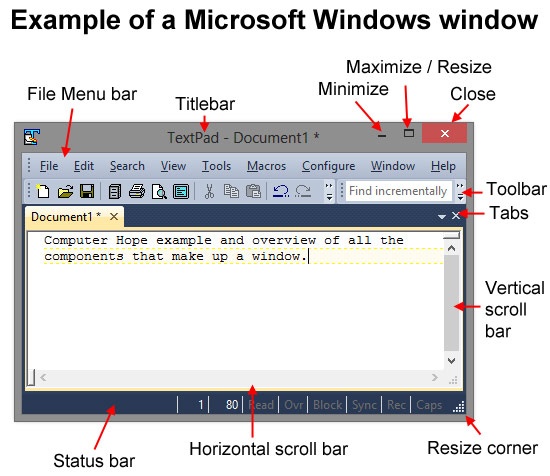
Before a window can be resized, make sure it is not maximized. A maximized window cannot be resized. If the window is maximized, click the Maximize / Resize button, as shown in the example below. Also, keep in mind that not every window can be resized.
...
- Once a window is not maximized, you should be able to move the mouse cursor to any edge or corner of the window until a double-headed arrow appears.
- Once this arrow appears, click the mouse and drag it up, down, left, right, or diagonally if you are at the corner of the window to make the window larger or smaller (depending on what edge of the window is being dragged). If this double-headed arrow does not appear, the window cannot be resized.
- Below is an animated example showing a double-headed arrow on the bottom, left, and corner of a window and how clicking and holding the mouse with this arrow allows you to resize a window. If you only want to make the window horizontally bigger, move the cursor to the left or right edge of the window until it turns into the double-headed arrow. If you want to make the window vertically bigger, do the same thing at the top or bottom of the window. If you want to resize both horizontally and vertically, use one of the corners of the window.

| Info |
|---|
Note: With Apple MacOS, the maximize/resize button is represented as a yellow button found in the top left corner of the window. |
...
|

...
Tip: If you do not see the minimize, maximize, or close buttons, try moving your mouse to the top of the screen. With newer versions of Windows and programs, some developers hide these options for a cleaner look. |
Moving a window using the mouse
Once a window has been resized so it is not fullscreen, it can be moved anywhere by clicking and holding the left mouse button down on the title bar and then dragging it to where you want it displayed. Below is a visual example showing how this is accomplished. When clicking the title bar at the top of the window try to click on an empty portion of the title bar or the title of the window. Other buttons that may be on the window like the minimize, maximize, and close will perform the action of those buttons.

The above gifs were obtained from http://www.computerhope.com/ they have many free tutorials about computer basics that could be helpful to a computer beginner.
...