Versions Compared

Key

  • This line was added.
  • This line was removed.
  • Formatting was changed.
Note
iconfalse

The Zoom Phone team may have visited your office while you were away in preparation for UWF's phone service migration to Zoom Phone.

Before June 16: Continue using your current phone.
Starting June 16: Use Zoom Phone.

Info
titleYour university phone number is not changing.

The way you make and receive calls may be changing, but your assigned phone number remains the same.

If you found a Zoom Phone calling card in your office, find the picture below that best matches your situation.

HTML
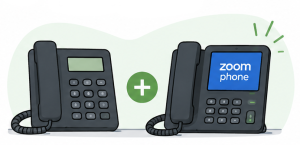
<span style="font-family: 'Cabin', sans-serif;font-size: 18px;"><b>I have BOTH an old phone and a new Zoom phone.</b></span>

Image Modified

Good news! Your new Zoom phone is set up and ready for June 16.

Keep using your current phone until June 16. Starting June 16, you'll use your new Zoom phone with the same university phone number.

What should I do?

Before June 16

  • Continue using your current phone
  • Set up your voicemail on your new Zoom phone
  • Familiarize yourself with your new Zoom phone

Starting June 16

  • Begin using your new Zoom phone
  • Your university phone number will automatically move to your new Zoom phone
  • Leave your old phone on your desk for collection


HTML
<span style="font-family: 'Cabin', sans-serif;font-size: 18px;"><b>My old phone is gone.</b></span>

Image Modified

Good news! Your university phone number

has been

will be moved to Zoom Phone. Starting June 16, you'll use the Zoom app on your computer or mobile device to make and receive calls using the same phone number.

What should I do?

  • Sign in to the Zoom app on your computer and/or mobile device
  • Set up your voicemail
  • Familiarize yourself with Zoom Phone
  • Beginning June 16, make and receive calls on Zoom Phone 

If you were expecting a desk phone, contact your department's Zoom Phone Department POC (Point of Contact)


HTML
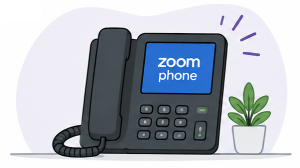
<span style="font-family: 'Cabin', sans-serif;font-size: 18px;"><b>I only have a new Zoom phone.</b></span>

Image Modified

What should I do? 

  • Complete remaining Zoom Phone setup tasks such as setting up your voicemail
  • Familiarize yourself with your new phone
  • Begin using it on June 16

We likely completed your setup while you were away from your office, or we were given permission to remove your old phone early.

HTML
<span style="font-family: 'Cabin', sans-serif;font-size: 18px;"><b>I don't see my situation listed.</b></span>

Image Modified

If others in your area received calling cards and you did not, one of these is probably true:

  • You do not currently have a university phone

  • Your phone setup requires additional work

  • We were not able to access your office when we visited
  • There may be a delay in migrating your university phone number to Zoom

If you currently use a Siemens or Cisco phone, there’s still a good chance we’ll be visiting your area around June 16th.

Need Help Getting Ready?

For setup instructions, training materials, and information about using Zoom Phone on your computer, mobile device, or desk phone, visit Getting Started with Zoom Phone.

Include Page
ILP:_Help Desk Footer