Overview
| Excerpt |
|---|
This page provides the instructions for obtaining and downloading the Oracle Campus License software. The Oracle campus license can be utilized by students, faculty, and academic programs. The license includes the Oracle Database Enterprise Edition, Active Data Guard, Oracle Internet Application Server (iAS), Oracle Diagnostics Pack, Oracle Tuning Pack. |
Instructions
The license includes the Oracle Database Enterprise Edition, Active Data Guard, Oracle Internet Application Server (iAS), Oracle Diagnostics Pack, Oracle Tuning Pack. ITS does not provide support for these programs.
...
Step 2
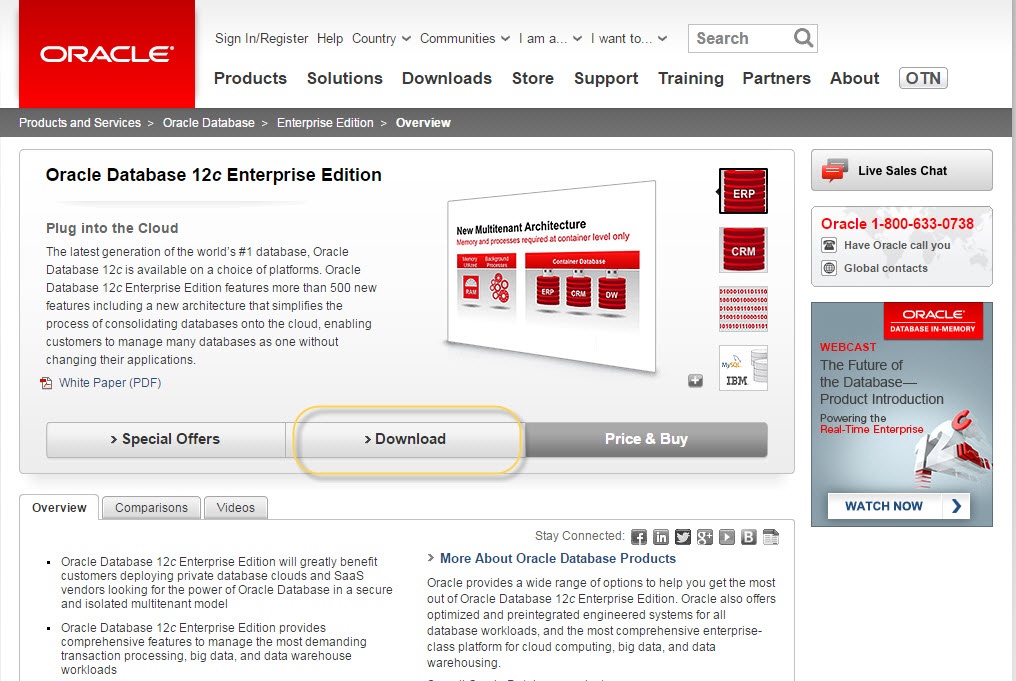
Click on the Download tab.
Step 3
When the Download drop box appears, click Register.

Step 4
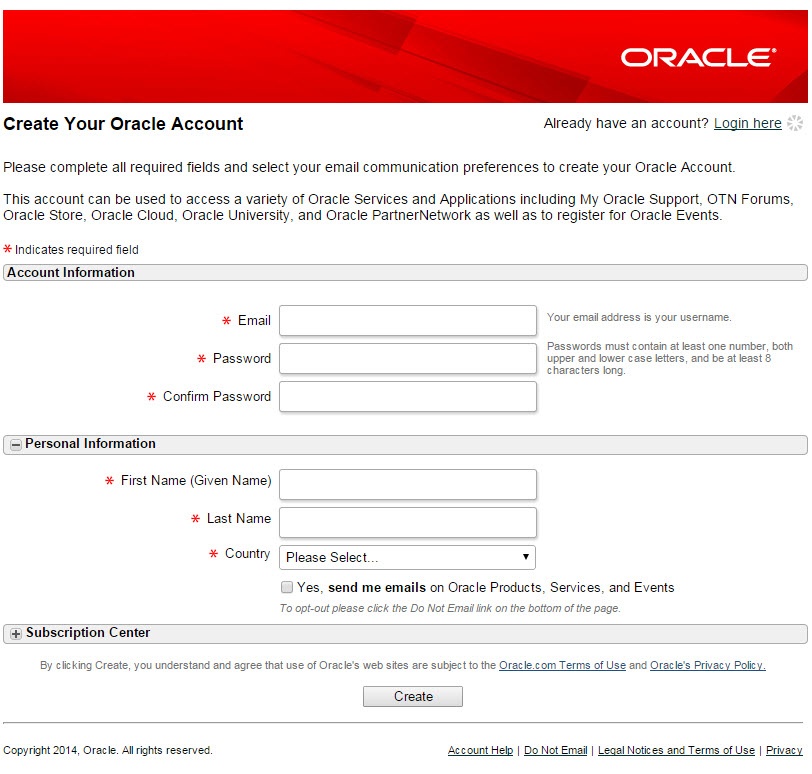
Fill out the Create Your Account form using your UWF email in the email box. You may use any password you like. This will confirm that you are a UWF student, faculty, or staff. Click Create when you are finished filling out the form.
Step 5
A confirmation email will be sent to your UWF Gmail account.
...
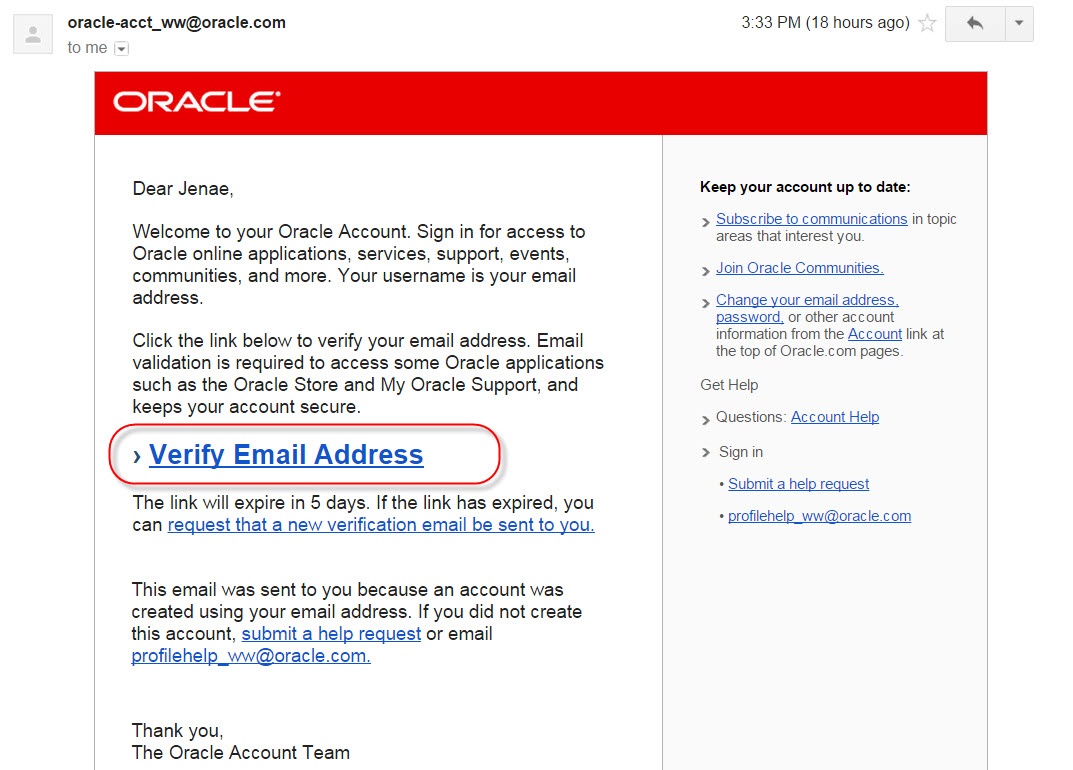
Open the email from Oracle and click the Verify Email Address link.
Step 7
When you click on the Verify Email Address link, you will be taken to the Oracle signin page. You can also get to the Oracle signin page at https://login.oracle.com/mysso/signon.jsp. Sign-in using your UWF email and the password that you created when registering for the Oracle account.
...
Once you sing-in, you should be taken to a page that says Your Email Had Been Verified. Click Continue.

Step 9
Click on Download Database 12c.

Step 10
Click on Download Database.
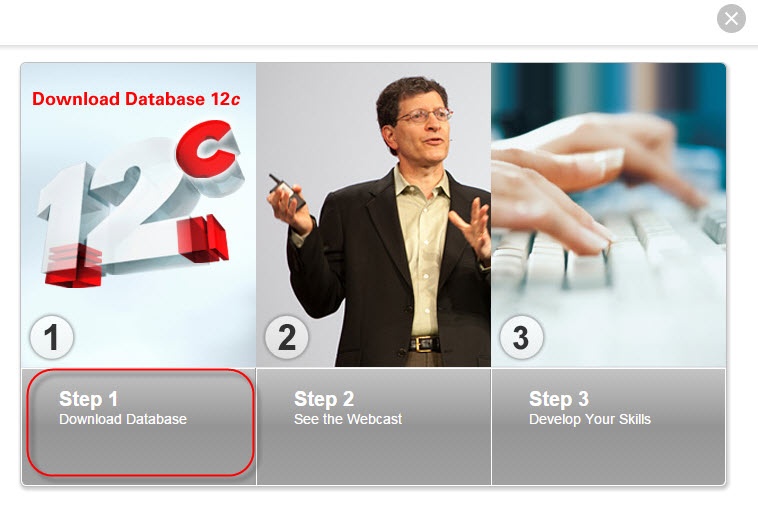
Step 11
Click the circle next to Accept License Agreement.
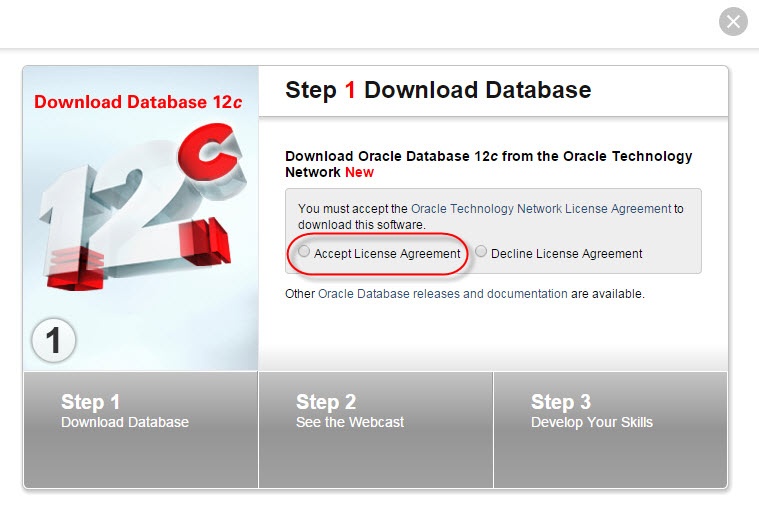
Step 12
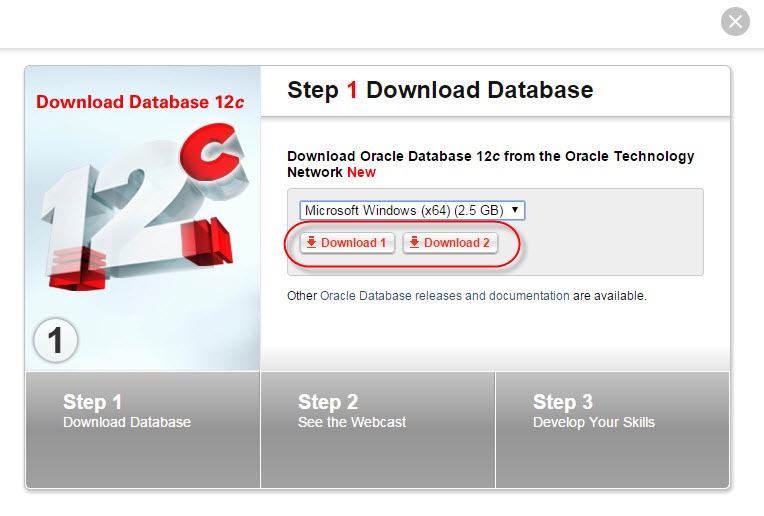
Choose your operating system from the pull down list.
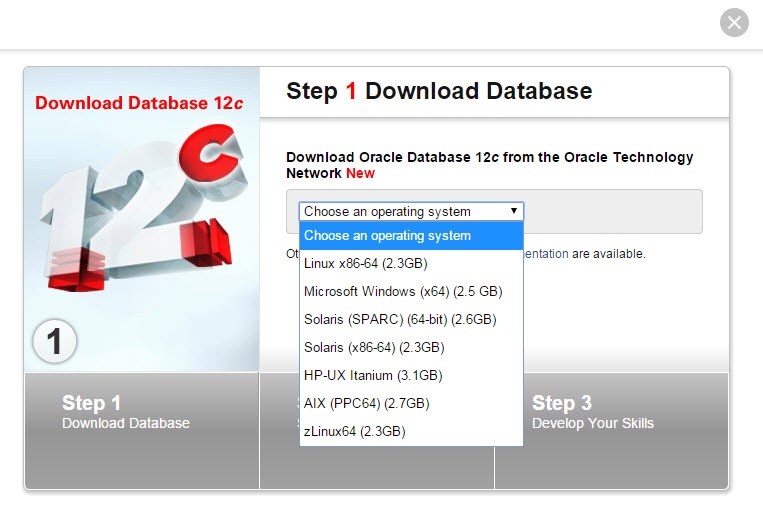
Step 13
Click Download 1. Once Download 1 is finished downloading, click Download 2.