
...
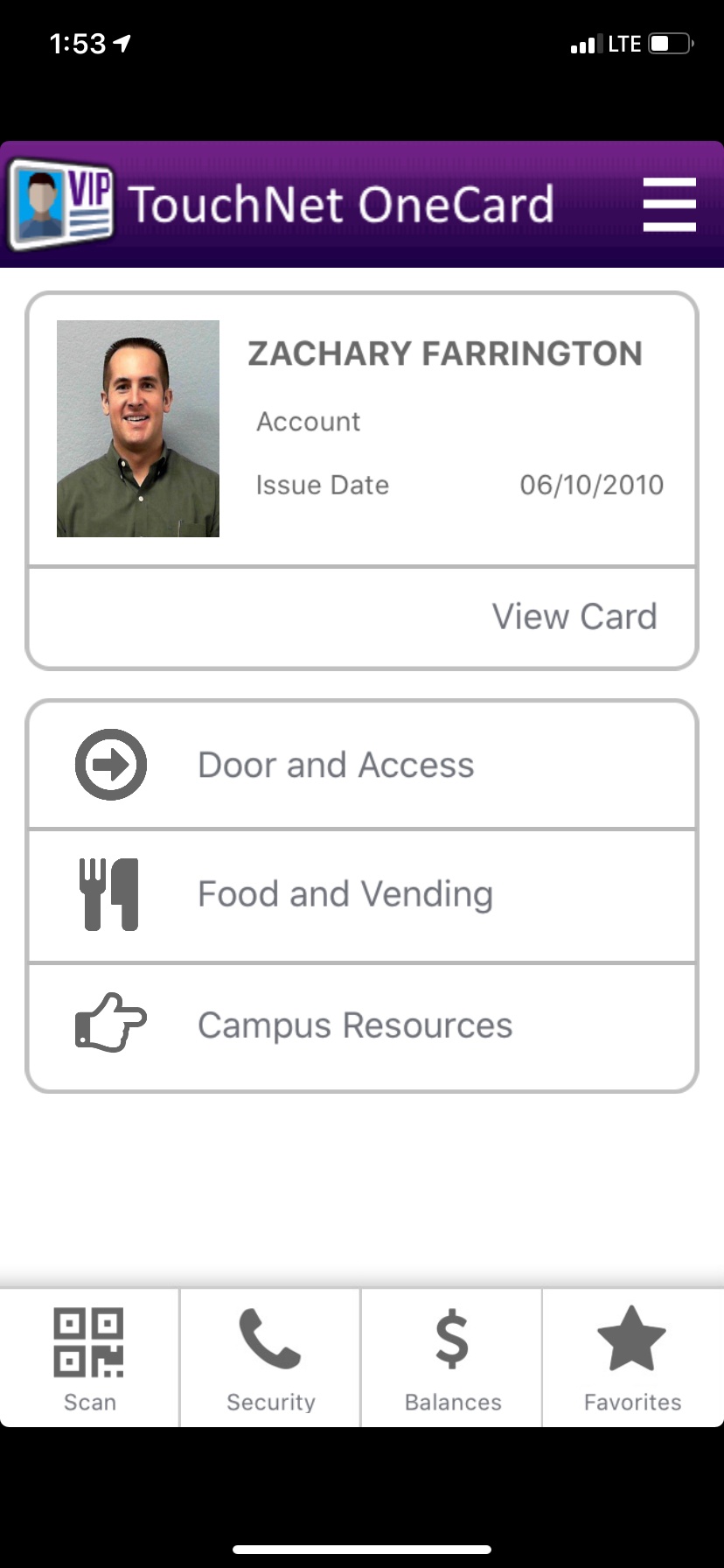
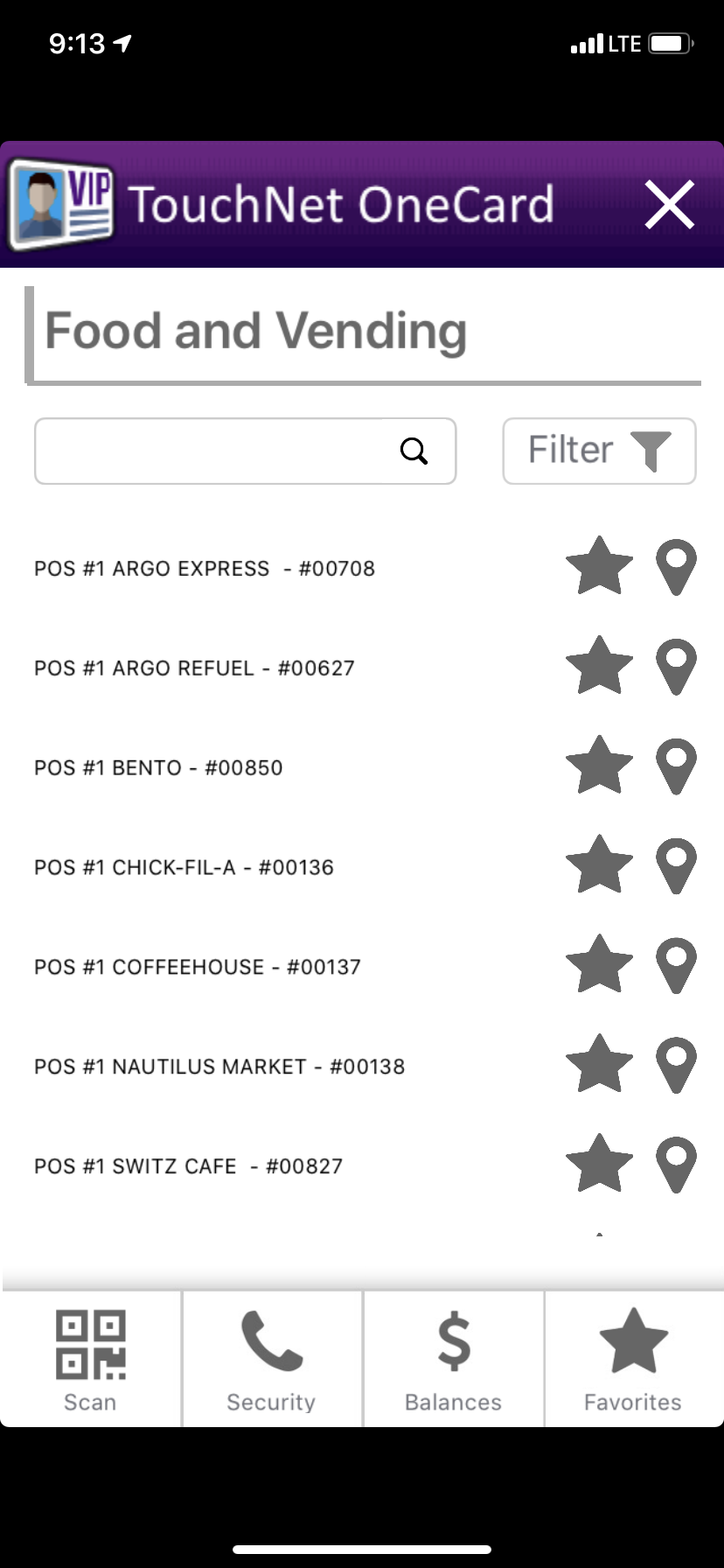
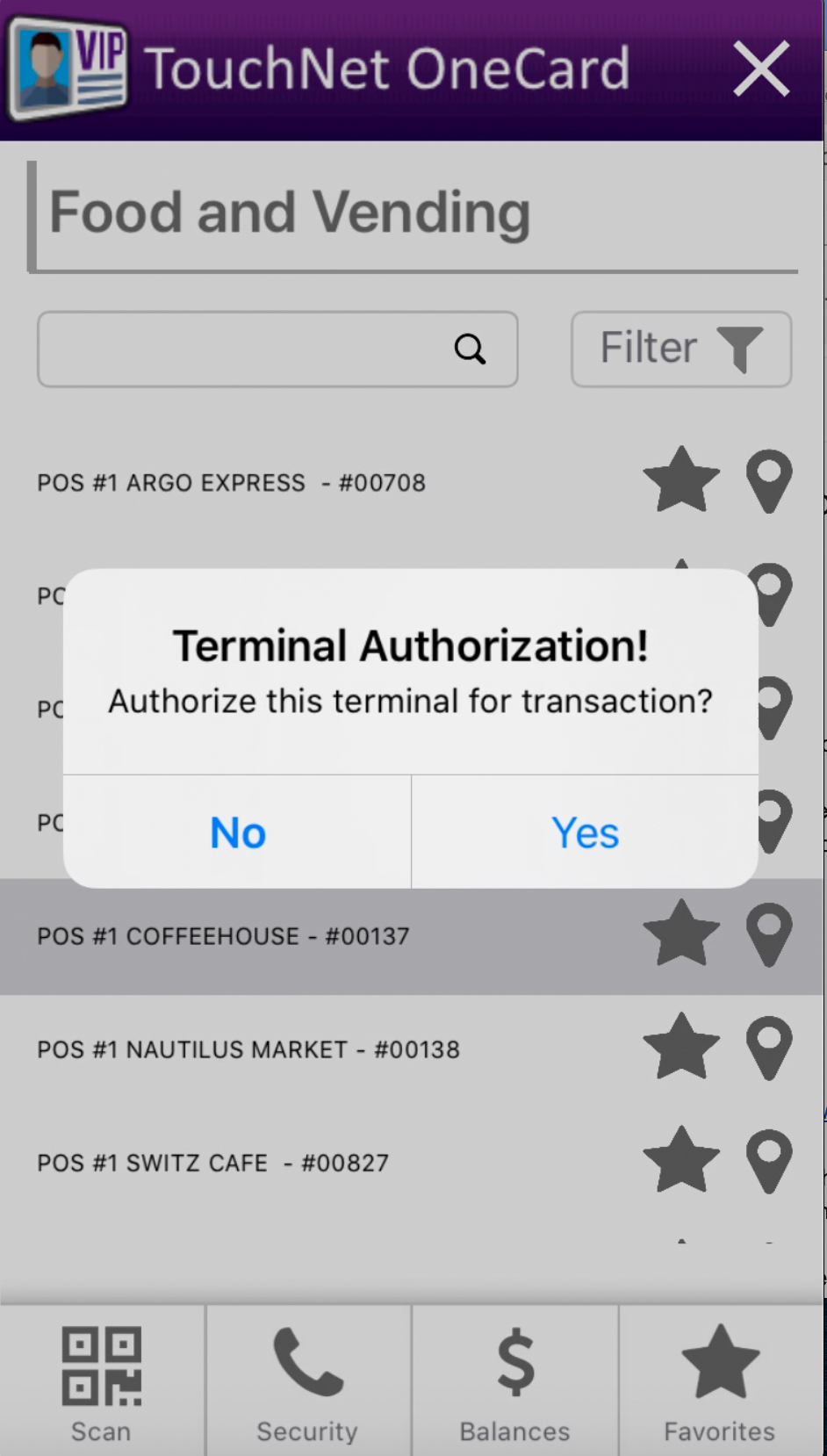
When you select "Food and Vending," You will be shown the POS Terminals for the Dining locations on campus. You will select the appropriate one and press the Map Marker icon to pay remotely. You can select the Star button to add your most frequently used Dining locations to your Favorites menu. Press Yes to authorize your payment at the terminal.
Home Screen - "Press Food and Vending" "POS Terminals Screen" "Authorization Screen for Payment"
 .
. 
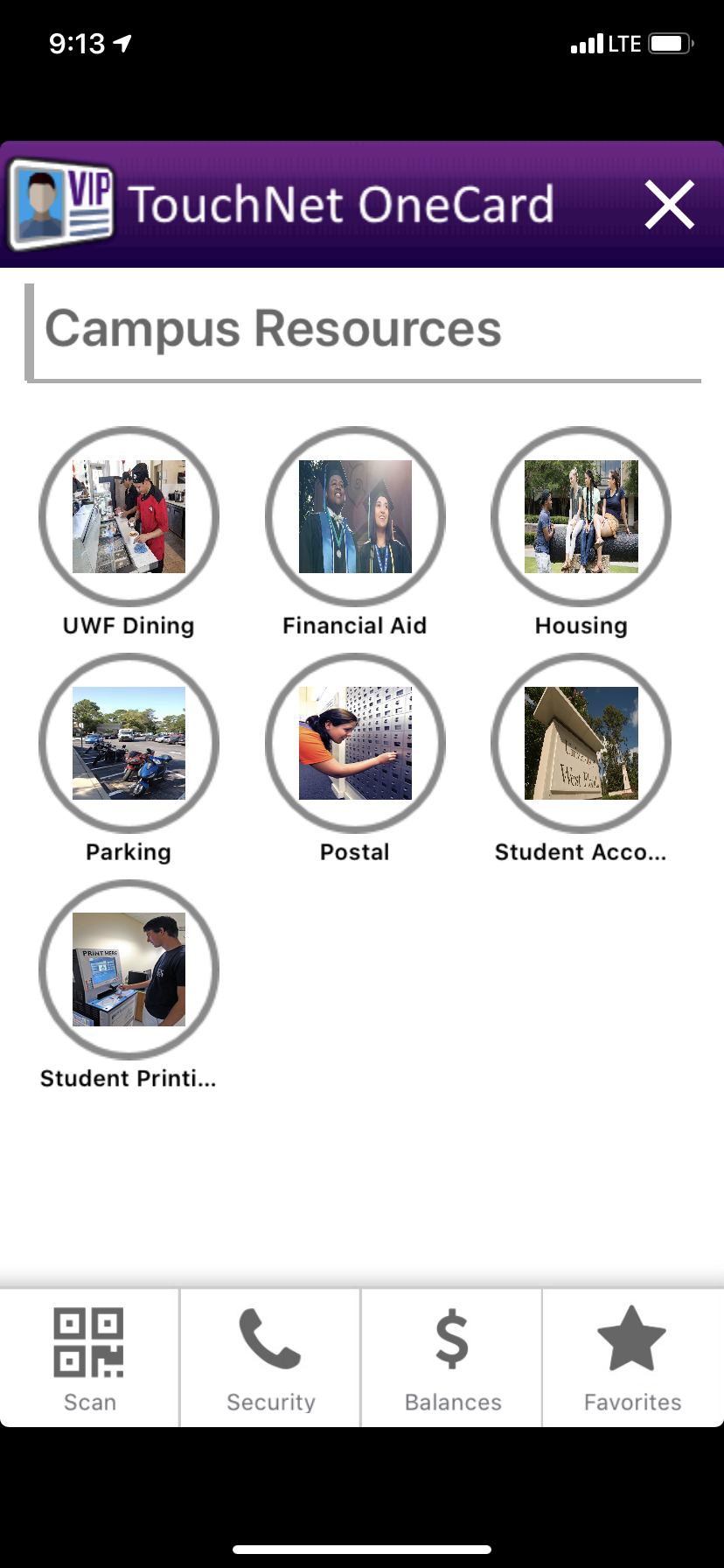
When you select "Campus Resources," you will be able to find links to frequently used information from our various websites such as Dining Hours, Parking, Student Printing, and Postal Services.
...
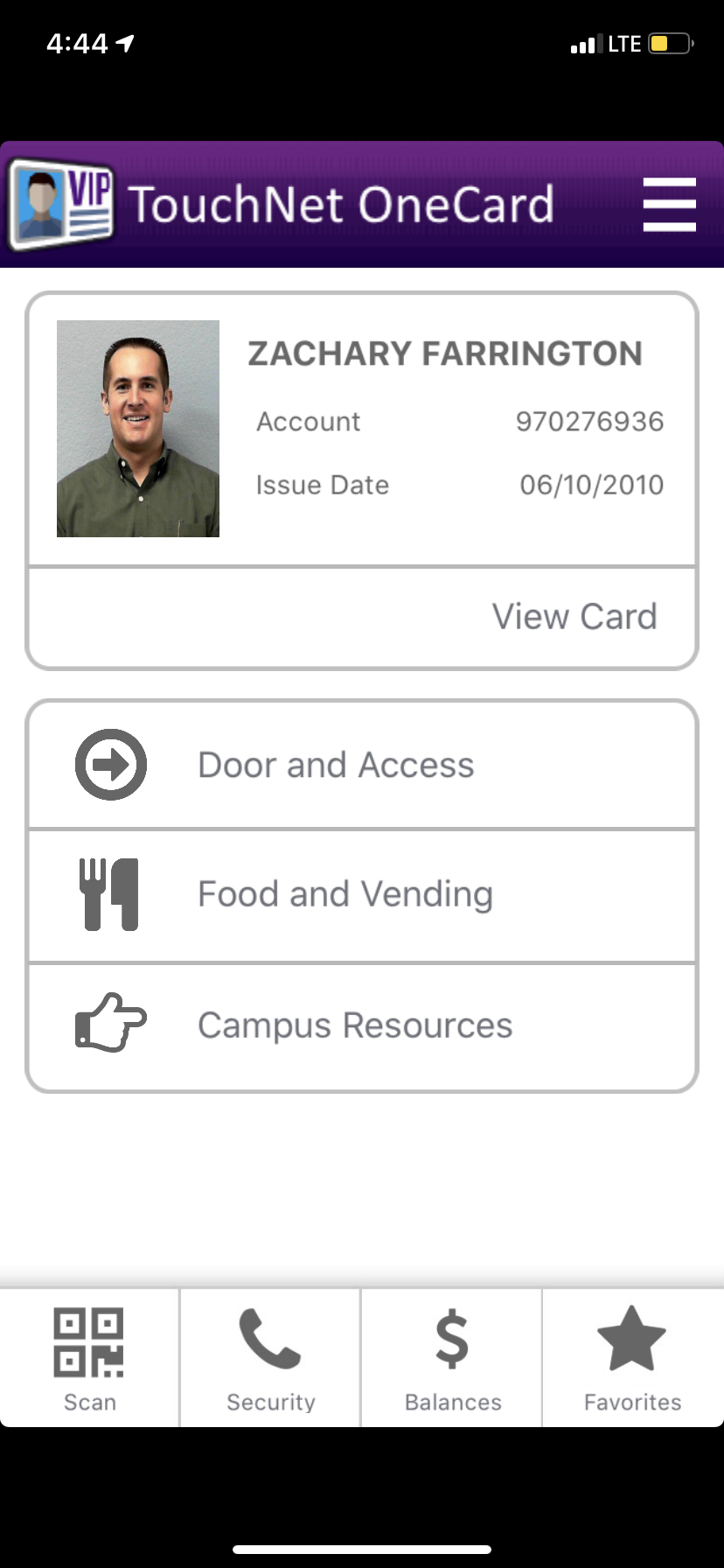
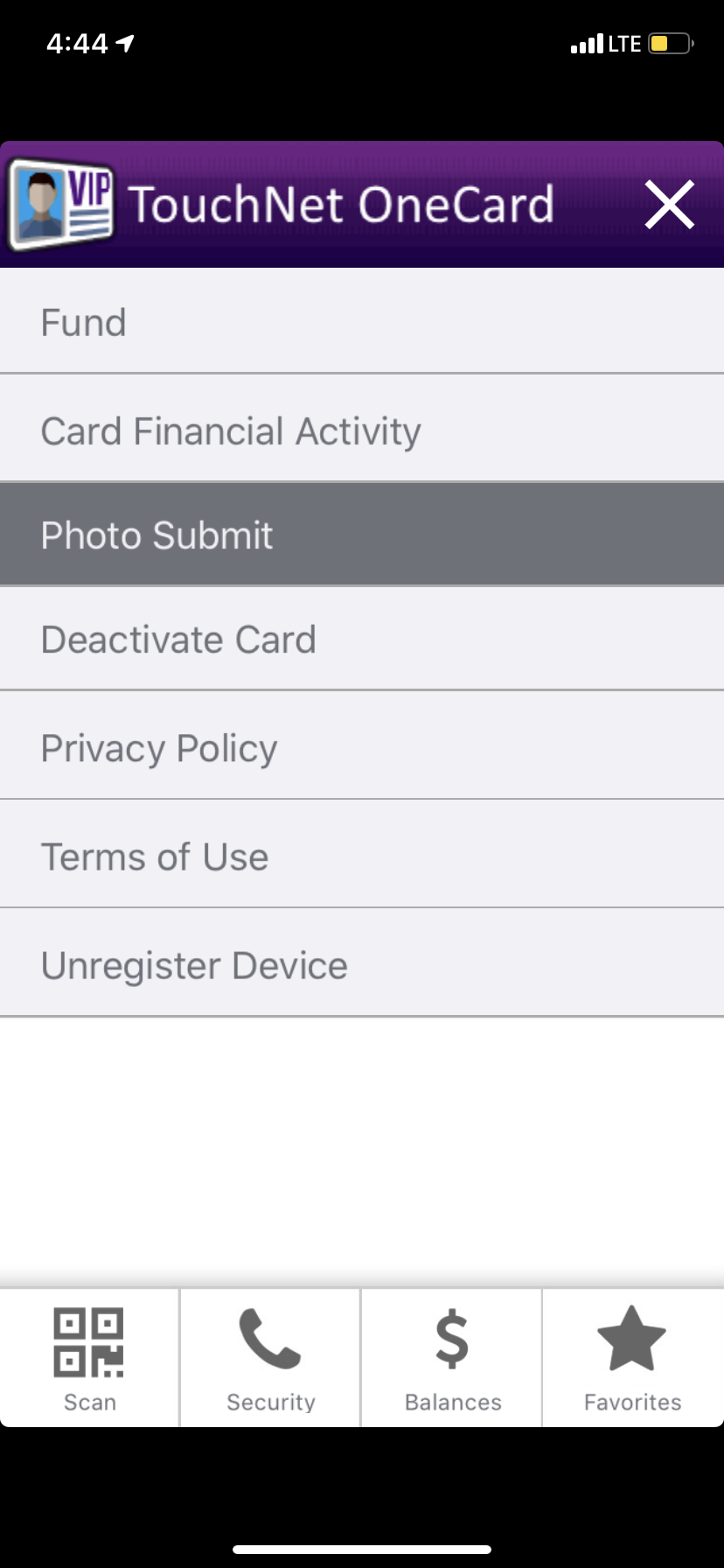
- Fund - This will direct you to the website for making Online Deposits to your Nautilus Card.
- Card Financial Activity - You can search by date to track your card activity.
- Deactivate Card - If your card is lost or stolen, you can deactivate it from the app. Once deactivated, you will need to go to the Nautilus Card Office to get a new card.
- Privacy Policy / Terms of Use - You can view the TouchNet OneCard app privacy policy and Terms of Use here.
- Unregister Device - You can unregister your phone from the app using this button.
 .
.  .
. 
FAQs
| Expand | ||
|---|---|---|
| ||
Enter answer here |
...